Wednesday, May 16, 2012

How to repair this blue screen?

Hi,

I just got this PC and haven't managed to test what's the problem. Can you tell me?

Specification
Intel Dual Core
4GB RAM
500GB HDD
Windows 7 Pro
Nvidia GT 520.


What I did:
After testing the hard disk with HDDscan and testing the RAM with PC Check. I initially thought that it was the hardware problem. I then run a virus scan on the hard disk and found it to be infected by virus. 

In order for a virus to cause blue screen, it is likely the system files are damaged. The best choice would be to format it.


Sunday, May 13, 2012

How to resize existing hard disk partition with Easeus Partition Magic Free

The story:

My staff told me that her PC is running really slow. I check and found that her C drive (partition) is almost full with only 450MB left. The PC slow down as Windows does not have enough space for virtual memory. (Windows uses drive C to write virtual memory unless specified otherwise).

Note :Virtual memory are like RAM. But Windows use the hard disk instead of RAM due to some programs uses more memory then the RAM memory you have.

Then, I saw that she has 45GB of unused space in drive D. I decide to resize drive C and merge the free space of drive D into C to make it bigger.

This is how I do it:

  • download Easues Partition Magic from Easues website.
  • install Partition Magic in the PC you want to resize.
  • start Partition Magic
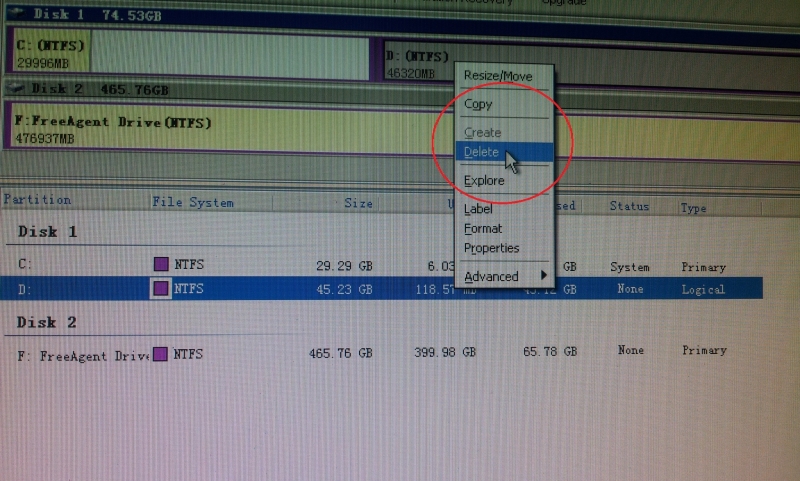
  • check the partition information (below picture)
  • I wanted to merge the 45GB of drive D into drive C (picture above)
  • first, I would copy all the files in drive D into an external hard disk because the data in drive D will be deleted upon merging the partitions.
  • delete the D partition by right click and choose delete, OK and Apply (picture below)


  •  once complete, you will see you have 45GB of unallocated space in drvie D.

  • 'right click' on drive C and choose 'resize' (picture above)
  • drag the partition size to the size you want (picture below)

  • I wanted to make the C partition 70GB and then choose 'Apply' (pictures below)


  • Once finish, I now have a 70GB drive C instead of 29GB previously
Additional note:
  • Be advised the above process will only destroy data in drive D, not drive C. Once done, all files in drive C is preserved.
  • Caution: I would suggest you backup all files in drive C and D into external drive before starting the above process. We never know what will happen during the process. Bad sector or power failure may render your data loss.
Want to be a PRO?

Learn to repair computer fast and easy.
Ear money as a self employed or start a career as a computer repair specialist or consultant. 

Get the below course and become pro yourself.


Start a prosperous journey in life.


Which is the best desktop processor? AMD vs Intel?


The story:

I wanted to know what are the better processor to use if I need to upgrade my Core2Duo PC at home (maybe for the sake of Diablo III.. Wahaha.).

I found this article. Maybe it will help you too.

Best CPU: the 8 top processors today

Wednesday, May 2, 2012

How I started using free Office programs - Open Office and Google Docs.


The Story,
I started using Open Office since 2008. I started a business then and had limited capital. I tried free Open Office instead of Microsoft Office which will cost me.

I had downloaded Open Office and tried it. I fell in love with it and use it since then. Even I have MS Office 2010 on my laptop, I still use Open Office as my main Office Editor.

Why I like Open Office :-

  1. Simple interface and easy to use
  2. Functions are easy to access
  3. Good menu layout
  4. Able to open almost all MS Office files
  5. Spreadsheet meet all my basic need without complicated menus.
  6. Fast 
Now I also use Google Doc. It is mainly for shared document among my team members. With Google doc, my team members can update reports, notes and listing in real time and I can read it where ever I am.

No need to call, email and ask for the documents. I can access them on my Samsung Galaxy Note, My Dell Laptop and also from anyone's PC.

It's so flexible and convenient. I have the following reports in my hand :-
  •     ‎IT Daily Report
  •     ‎GPS Report 
  •     ‎Monthly Stock Movement
  •     ‎CCTV Site Record 
  •     ‎Computer Settings 
  •     ‎Software License Key
I have to tell you that Microsoft Office is still the best Office software out there. But if you are a general user and looking for an alternative, please look into Open Office and Google Docs first.

You can download Open Office here.
You can start using Google Docs here.

Here's an interesting article by CNET, How I learned to say, 'Hi, Google Docs; bye, MS Word

Additional notes:
  • Open Office isn't a cloud service. The software are installed into you PC.
  • Open Office sometime open Microsoft Office Documents a little different. Especially Office 2007 and 2010 templates. You may need to convert those files to 2003 version first.
  • Power Point 2007/2010 animation aren't all supported. 
  • Google Docs are Cloud based service. You do not have the software in your PC, you need internet access to use it and access your files.
  • You need at least broadband speed to use Google Docs properly.
  •  With cloud based Google Docs, you will not lost any files even hour Pc hard disk is damaged or even stolen. All files are stored in the Internet inside Google's Server.

Sunday, April 29, 2012

How can I make my Windows 7 machines boot up quickly

The Story,


I have been experiencing slow boot up of my own Windows 7 laptop. I found this article in Cnet forum that explain what I would normally do to solve it. Please read on.

Windows 7 forum: How can I make my Windows 7 machines boot up quickly?

Additional note :

  • Be advised that you need to have ample RAM to have any effect on Windows 7 performance. I recommend 4GB RAM and 2GB (minimal) with Dual Core processor.
  • If you have lower specification, the configuration will not be very helpful. 


Thursday, April 26, 2012

How to create hard disk image with Acronis True Image

The story :

Our mini market division has a point of sales IBM server that is a few years old. After a client POS hard disk failed, we fear that the server may also fails soon. They were purchased together.

I decided to make an image of the hard disk just in case. I will use Acronis True Image Bootable CD to create the image into an external hard disk.

I am using an older version of Acronis, the later versions may look different. I bet the functions are likely the same.

Requirements :
a) Acronis True Image Bootable CD
b) USB external hard disk
c) Server with Bootable CDROM Drive

How I do it :

1. Plug the external hard disk (USB FreeAgent Drive) into the server
2. Turn on the server
3. Insert the Acronis CD before the Windows Server start
4. The server will boot using Acronis (picture below)


5. From the Acronis main window, choose Backup (picture below)


6. It will tell you that Acronis will use a wizard to assist you. Click Next (picture below)


7. Choose the hard disk partition you want to backup to an image and click Next (picture below)


8. Choose the target to create the image (I choose Free Agent external drive D:), type in the name of the image and click Next (picture below)


9. I will have 4 option to choose from. I may password protect the image, increase compression ratio, split the image or change other parameters  (picture below) .
10. I normally just click next to proceed to image creation (picture below) 


11. After clicking Next, the image creation process will start as indicated by the progress bar (picture below)


12. Wait for the process to complete and exit.
13. With the image created, I only backup the POS database into external hard disk daily. If the server hard disk fail, I will use the Acronis CD and image (in the external hard disk) to restore the image into a new hard disk. I will then copy the backed up database into the new server hard disk (overwrite the old database in the image).

You may find out or purchase Acronis True Image here

Kenneth's note :
  • with Acronis, we can also backup the image direct to thumb driver, secondary hard disk and other partition.
  • other software like Norton Ghost can do the job as well.
  • there are free hard disk clone software such as Disk Clone but they are hard to use.


Wednesday, April 18, 2012

How to use virtual desktop - DexPot


The story,

I always need to work with multiple project at once and it's just too messy to put so many things in a single Windows desktop(screen). I have outlook, web browser for gmail, gdoc and Google calender, a few documents and Excel worksheets and GPS fleet management system client.

How nice if I can work at each group of programs on different screens. With virtual desktop, we can do it. We can switch from a few desktops with only one computer screens. We can just press some combination of keys like (alt +1 to alt +4) to switch from each screen.

I normally use 4 virtual desktops for my work. I have emails and Outlook for 1 screen, browser for another screen, projects (excel and other applications) on third screen and others on the forth screen.

I use Dexpot to do it. Dexpot allows up to 20 possible desktops. It has a well organized interface that enables easy switching among desktops with just pressing a few combination of keys.

I now can focus on a single desktop and switch to others when necessary.

Try it and you will like it. Download Dexpot here.

It's free too.

Kenneth's note

  • Some may want real multiple monitor instead of multiple virtual desk cause you can look at all the screen all the time. With virtual screen, you can only look at a single screen and preview all the virtual desktop on a split screen (not full screen).  
  • Multiple screens are achieve by adding hardware (display cards), not by software.
  • There may be some application that won;t work with virtual desktop.